> ## Documentation Index
> Fetch the complete documentation index at: https://docs.nora.my/llms.txt
> Use this file to discover all available pages before exploring further.
# Cases
> The input-and-answer table a cluster accumulates. Experiments are scored against it
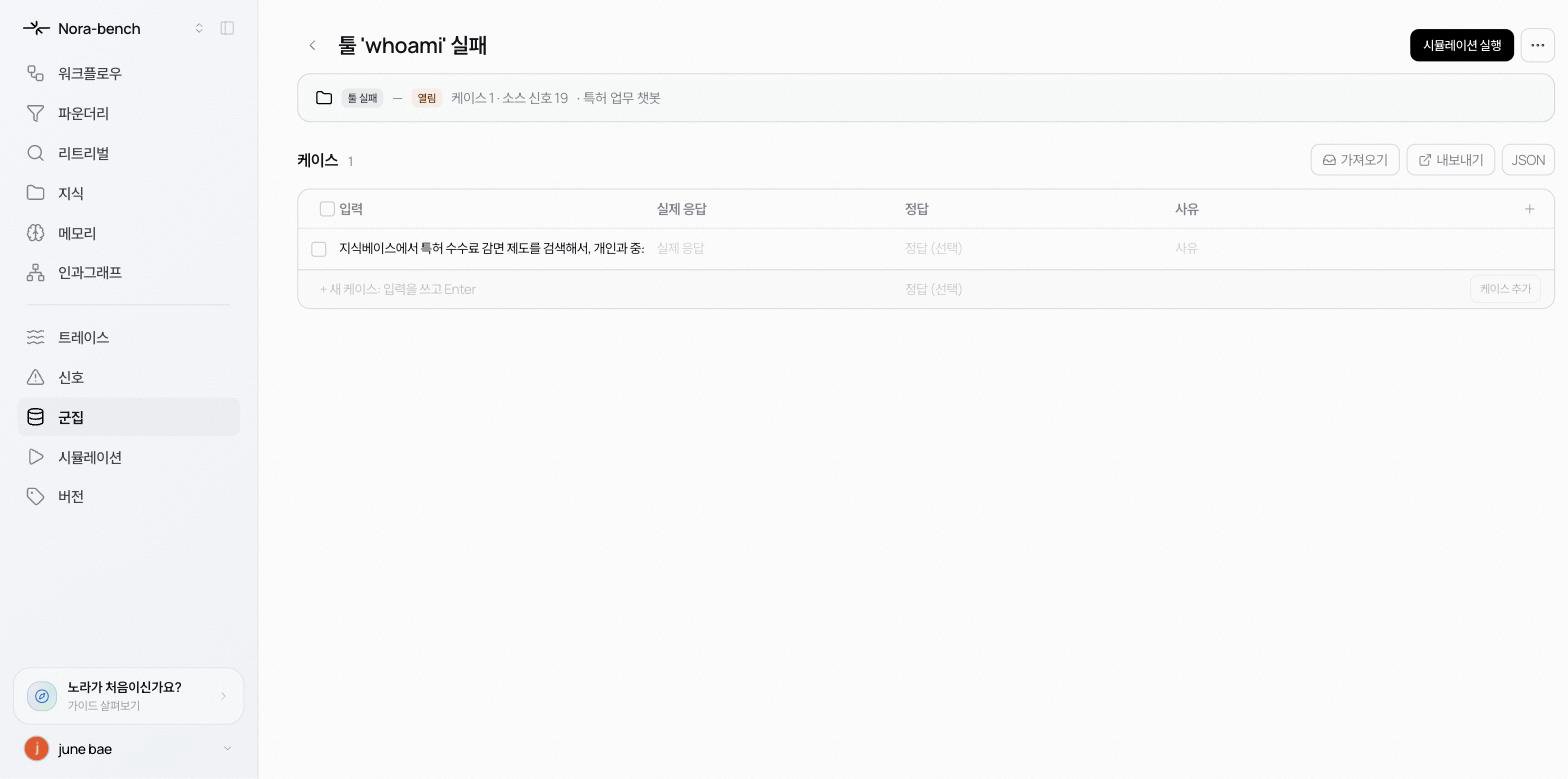
The body of a cluster's detail page is the **cases** table: a workbench where each row pairs an input that reproduces the failure with the answer that should have come back. When you run an experiment on the cluster, candidates are scored against exactly these cases.
 ## The table
* **Input** the question or trigger
* **Wrong output** what the agent answered when it failed
* **Expected** (optional) the answer that should have come back
* **Reason** reviewer feedback on what went wrong
The **+** at the far right adds a column.
## Where cases come from
* **Confirming signals** Press **Confirm failure** on a signal and it lands here as a case. The reason you wrote in the signal's **Feedback** tab becomes this case's answer key, so the more specific, the better.
* **Adding by hand** Type an input into the "+ New case: type an input and press Enter" row at the bottom and press Enter. The **Add case** button does the same.
* **Import** brings cases in from a file. **Export** and **JSON** go the other way.
## Working with rows
Hover over a row to reveal its ⋯ menu.
* **Open detail**
* **Generate answer** enabled only after you write a reason, because the answer is distilled from reviewer feedback rather than invented.
* **Re-cluster** finds the folder the case actually belongs in.
* **Move to folder**
* **Delete** removes the row immediately, with no confirmation.
Click any cell to edit it in place.
## How cases relate to experiments
Experiments use the cluster's cases as test cases. The **Cases tested** number in an experiment's results is the size of this table, and the **Case-by-case** section of a candidate's detail shows whether each case improved or regressed (see [Verify and publish](/reliable/simulation/verify-deploy)).
The **Reference folders** option on a new experiment can add another folder's cases to the scoring set (see [New experiment](/reliable/simulation/new-experiment)).
## Learn more
The list, filters, and folder management.
Start the experiment these cases will score.
## The table
* **Input** the question or trigger
* **Wrong output** what the agent answered when it failed
* **Expected** (optional) the answer that should have come back
* **Reason** reviewer feedback on what went wrong
The **+** at the far right adds a column.
## Where cases come from
* **Confirming signals** Press **Confirm failure** on a signal and it lands here as a case. The reason you wrote in the signal's **Feedback** tab becomes this case's answer key, so the more specific, the better.
* **Adding by hand** Type an input into the "+ New case: type an input and press Enter" row at the bottom and press Enter. The **Add case** button does the same.
* **Import** brings cases in from a file. **Export** and **JSON** go the other way.
## Working with rows
Hover over a row to reveal its ⋯ menu.
* **Open detail**
* **Generate answer** enabled only after you write a reason, because the answer is distilled from reviewer feedback rather than invented.
* **Re-cluster** finds the folder the case actually belongs in.
* **Move to folder**
* **Delete** removes the row immediately, with no confirmation.
Click any cell to edit it in place.
## How cases relate to experiments
Experiments use the cluster's cases as test cases. The **Cases tested** number in an experiment's results is the size of this table, and the **Case-by-case** section of a candidate's detail shows whether each case improved or regressed (see [Verify and publish](/reliable/simulation/verify-deploy)).
The **Reference folders** option on a new experiment can add another folder's cases to the scoring set (see [New experiment](/reliable/simulation/new-experiment)).
## Learn more
The list, filters, and folder management.
Start the experiment these cases will score.