> ## Documentation Index
> Fetch the complete documentation index at: https://docs.nora.my/llms.txt
> Use this file to discover all available pages before exploring further.
# Clusters overview
> Confirmed failures grouped by cause. Experiments start here
A **cluster** is a group of signals the Failure Agent has confirmed and grouped by cause. A single signal is one data point; a cluster is a pattern worth fixing. Experiments in Simulation also start by picking a cluster.
If you have no clusters yet, confirm signals in [Signals](/reliable/signals/overview). Confirming a signal seeds the first cluster.
 ## The list view
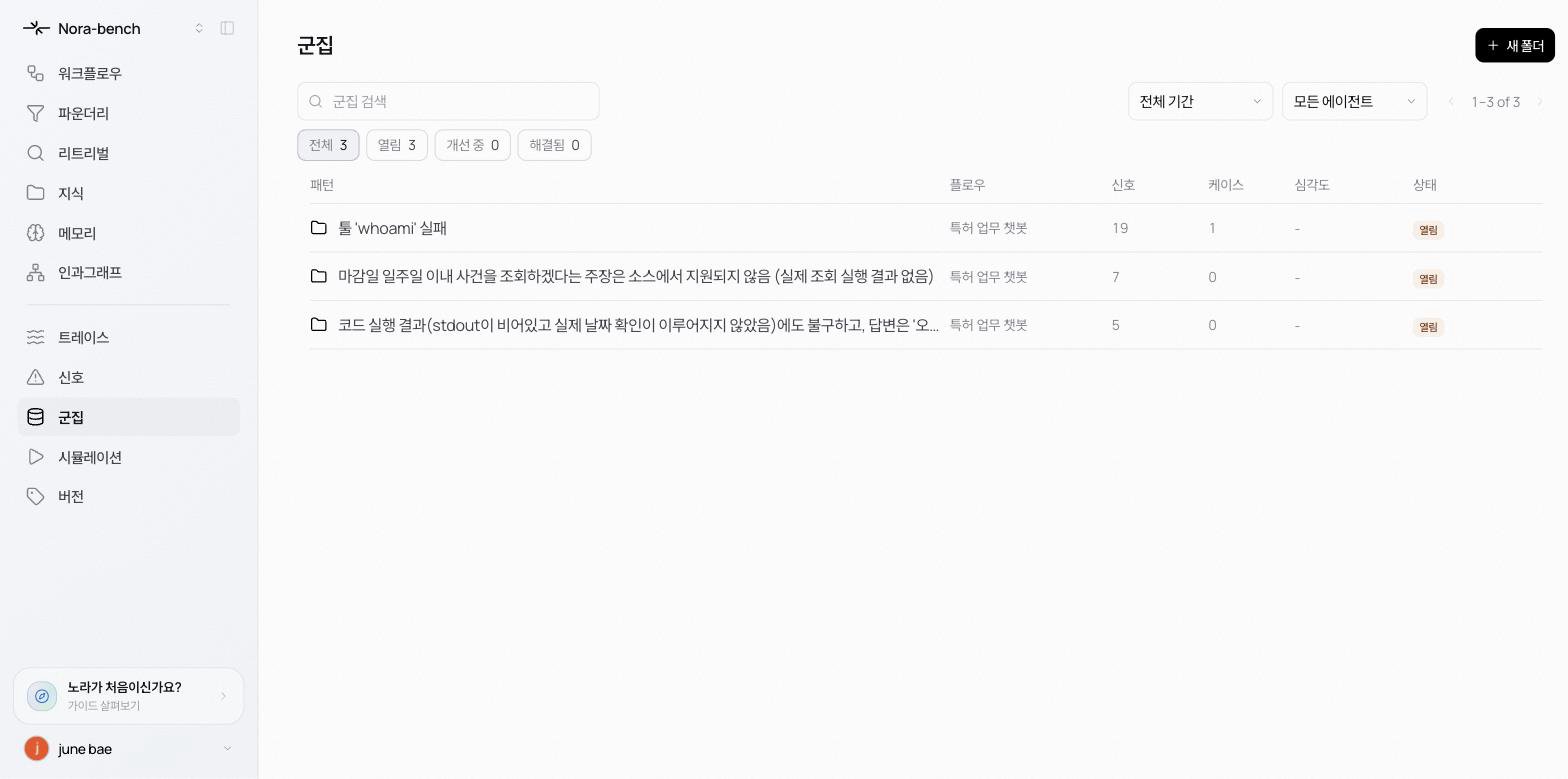
Open **Clusters** in the sidebar to see the workspace's clusters as a table.
* **Pattern** the cluster's summary title, generated by Nora from a representative signal
* **Flow** which Flow the failures came from
* **Signals** how many signals are grouped
* **Cases** how many cases have accumulated (see [Cases](/reliable/clusters/cases))
* **Severity**
* **Status** Open, Improving, or Resolved
Filter from the top of the page.
* **Search clusters**
* Date range: All time, Last 7 days, Last 14 days, Last 30 days, Last 90 days
* Agent: **All agents** or a specific agent
* Status chips: **All**, **Open**, **Improving**, **Resolved** (each chip shows a count)
## Cluster detail
Click a row to open the cluster. The header shows the title along with a category tag (for example tool failure or ungrounded claim), the status, and the case count, source-signal count, and Flow. The body is the case table (see [Cases](/reliable/clusters/cases)).
You can also arrive from the signal side: **View parent cluster** in a signal's detail opens the cluster that signal belongs to.
## Managing folders
Clusters are managed like folders.
* **New folder** at the top right of the list creates an empty cluster folder.
* The ⋯ menu on the detail page offers **Rename**, **Merge into…**, and **Delete folder**.
* Deleting a folder does not delete its cases; they move to Unclustered.
## Starting an experiment from a cluster
**Run simulation** at the top right of the detail page starts a new experiment with this cluster already selected (see [New experiment](/reliable/simulation/new-experiment)).
## Learn more
The inputs and expected answers a cluster accumulates. Experiments are scored against them.
Three steps from picking a cluster to launch.
Confirm signals to grow clusters.
The cluster-level experiment board.
## The list view
Open **Clusters** in the sidebar to see the workspace's clusters as a table.
* **Pattern** the cluster's summary title, generated by Nora from a representative signal
* **Flow** which Flow the failures came from
* **Signals** how many signals are grouped
* **Cases** how many cases have accumulated (see [Cases](/reliable/clusters/cases))
* **Severity**
* **Status** Open, Improving, or Resolved
Filter from the top of the page.
* **Search clusters**
* Date range: All time, Last 7 days, Last 14 days, Last 30 days, Last 90 days
* Agent: **All agents** or a specific agent
* Status chips: **All**, **Open**, **Improving**, **Resolved** (each chip shows a count)
## Cluster detail
Click a row to open the cluster. The header shows the title along with a category tag (for example tool failure or ungrounded claim), the status, and the case count, source-signal count, and Flow. The body is the case table (see [Cases](/reliable/clusters/cases)).
You can also arrive from the signal side: **View parent cluster** in a signal's detail opens the cluster that signal belongs to.
## Managing folders
Clusters are managed like folders.
* **New folder** at the top right of the list creates an empty cluster folder.
* The ⋯ menu on the detail page offers **Rename**, **Merge into…**, and **Delete folder**.
* Deleting a folder does not delete its cases; they move to Unclustered.
## Starting an experiment from a cluster
**Run simulation** at the top right of the detail page starts a new experiment with this cluster already selected (see [New experiment](/reliable/simulation/new-experiment)).
## Learn more
The inputs and expected answers a cluster accumulates. Experiments are scored against them.
Three steps from picking a cluster to launch.
Confirm signals to grow clusters.
The cluster-level experiment board.