

Source node kinds
File
Uses documents you uploaded to Nora directly. The node points at one library folder; upload and organise there and the refinery picks them up. Open in Library jumps to that folder from the inspector, and Upload uploads on the spot.- Folder: pick an existing library folder. Leave blank and the node uses its own folder, tagged with the node title.
Local path
Reads from a disk path Nora can see. Fine on a single host or in development; in multi-host production, the path has to be mounted on the Nora host.- Path: absolute path the runner can read (e.g.
/data/inbox). - Library folder: where the extracted docs land. Blank uses Inbox.
- Accepted MIME: pick from PDF, PNG, JPEG, TIFF, DOC, DOCX, TXT, Markdown.
- Max file size: per-file ceiling (MB).
Object
Reads from object storage such as S3, GCS, and Azure Blob.- Provider: Amazon S3, etc.
- Bucket / container: target bucket.
- Key prefix: only objects under this prefix. Blank = whole bucket.
- Max objects per run: ceiling on how many to list per run.
- Max download size: objects above this are emitted with metadata +
data_too_large: trueand no body. 0 means don’t fetch bodies at all.
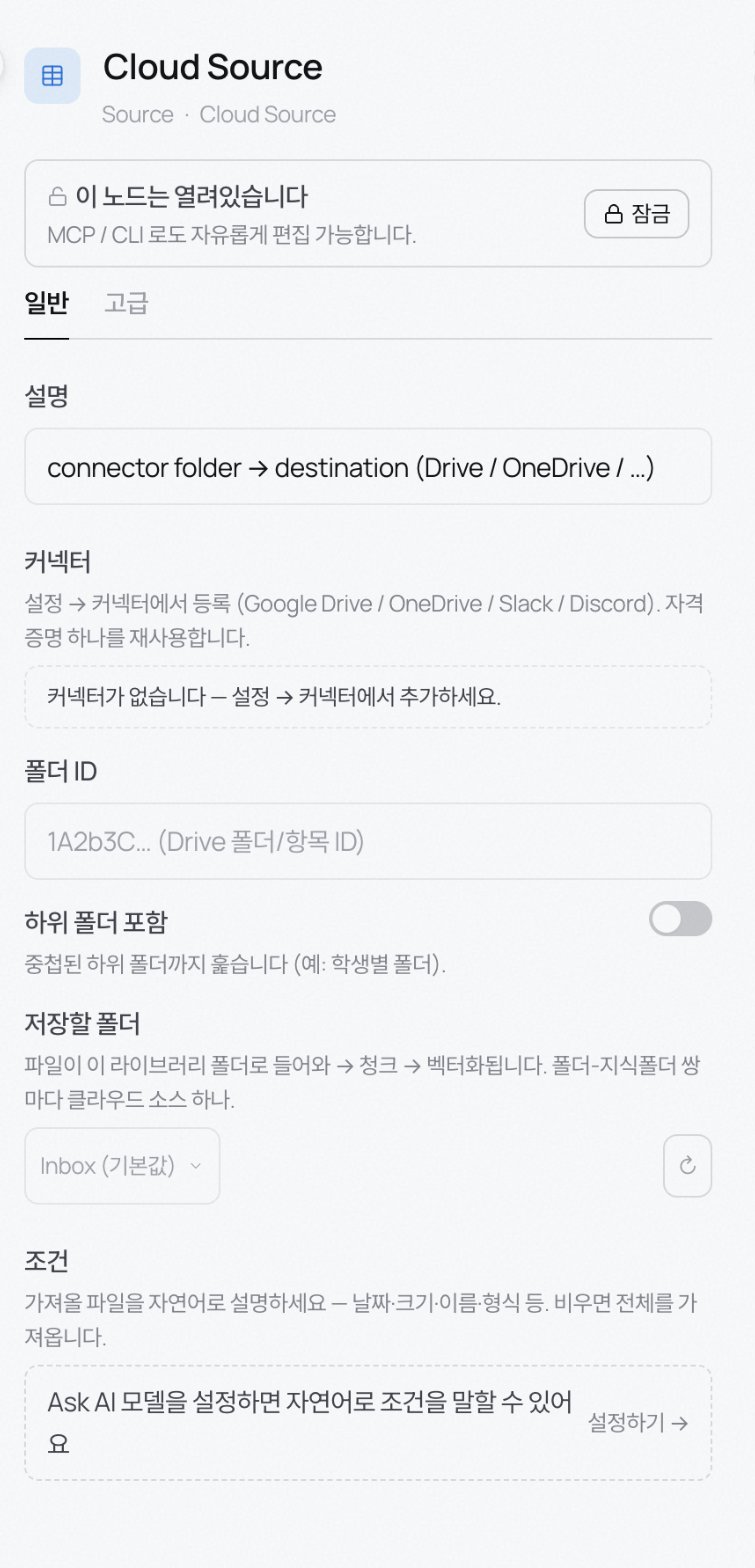
Cloud Source
Pairs a cloud folder (Google Drive, OneDrive, …) reached via a connector with a knowledge folder.- Connector: pick a credential registered under Settings → Connectors (see Connectors).
- Folder ID: the drive folder or item ID to pull from.
- Recurse into subfolders: walk nested subfolders.
- Target folder: the library folder the files land in. Use one Cloud Source node per (source folder, library folder) pair.
- Filter condition: natural-language filter for what to fetch (date, size, name, format). Requires an Ask AI model to be configured; blank means fetch everything.
Web / API
HTTP GET/POST against any REST API, including Slack, Notion, GitHub, and Gmail.- Endpoint: method and URL. Import from cURL fills the fields from a cURL command.
- Headers · Params: add as many as needed.
Stream
Batch-polls a Kafka topic. Typically paired with a Schedule trigger for periodic polling. Kafka only for now.- Bootstrap servers: comma-separated.
secrets://<ENV>reads from env vars. - Topic · Consumer group: refinery instances sharing a
group_idsplit partitions; differentgroup_ids each get the full stream. - Start offset: only applies to the first run of a fresh consumer group. Later runs resume from the committed offset.
- Max messages per run: ceiling per run.
- Poll timeout: how long to wait for the first message. Empty topics return immediately after this.
Database
Cursor-polls a Postgres, MySQL, or MariaDB table. Pairs with a Schedule trigger. The inspector uses the same DB picker + SQL editor shell as Enrich · DB Lookup and Output · DB Upsert.- Database: pick an internal resource registered under Settings → Internal resources. Kept as a reference so the DSN never lands in the refinery JSON.
- SQL: write the query with
{{cursor}}and{{limit}}placeholders. Placeholders map to the engine’s bind parameters (not string-interpolated). Usually something likeSELECT * FROM <table> WHERE updated_at > {{cursor}} ORDER BY updated_at ASC LIMIT {{limit}}. - Cursor · Batch (Advanced tab):
Cursor type(timestamp / integer / string),Initial cursor, andMax rows per run. - Legacy auto-builder (Advanced tab):
Table·Cursor column·Extra WHEREbuild the query automatically, but only when the primary SQL editor above is empty. Kept for compatibility with older refineries.