

Dataset
Trace data can be organized into datasets and used to run experiments to evaluate model performance.
Overview
Datasets allow you to collect and manage input–output pairs for LLM evaluation. They enable consistent performance evaluation and make it easy to experiment with different prompts or model configurations. Datasets can be created from selected traces on the Traces page or by uploading CSV/JSON files. Once created, datasets can be used for automated evaluation through the LLM Evaluation feature.
Creating a Dataset
There are two ways to create a dataset:
Create from traces
Upload a file
Create from Traces
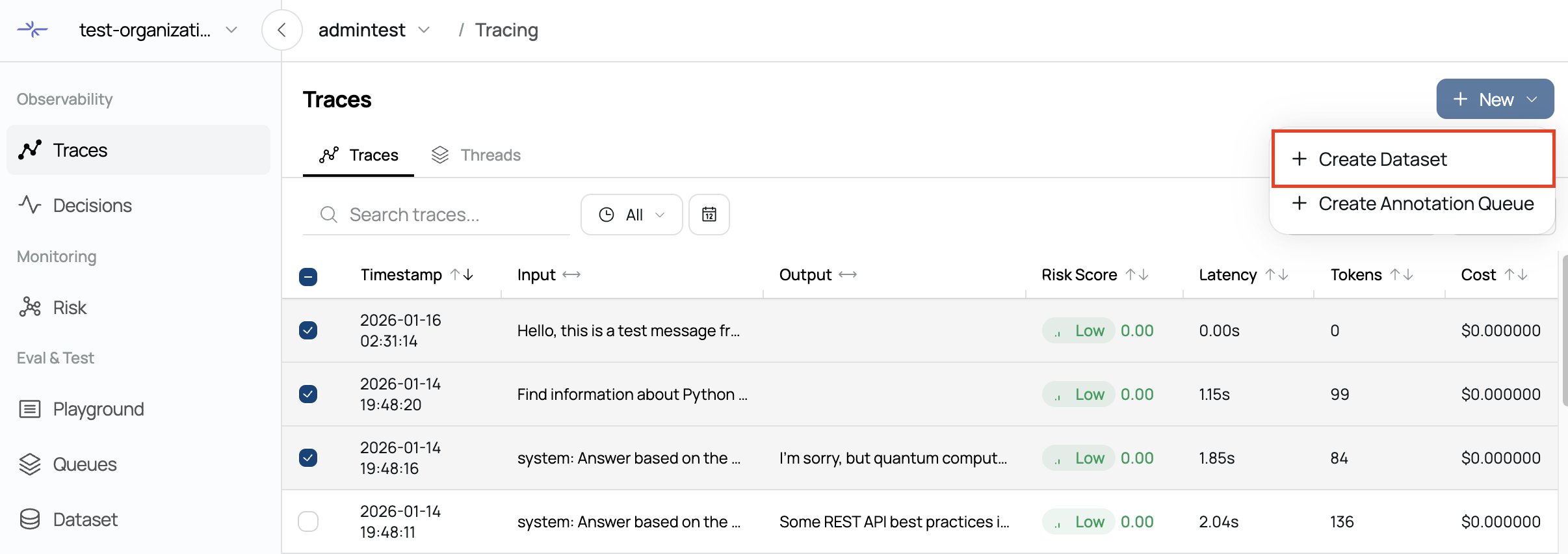
1. Select Traces
On the Traces page, select the traces you want to add to a dataset using the checkboxes.
2. Click Create Dataset
Click the Create Dataset button in the top header to open the dataset creation modal.
3. Configure the Dataset
You can create a new dataset or select an existing one. For a new dataset, enter a name and description. For an existing dataset, select the dataset you want to add the traces to.
4. Complete Creation
Click Create to add the selected traces as dataset items and navigate to the dataset detail page.
If an existing dataset is selected, the traces are added directly to that dataset.
Create from File Upload

1. Click New Dataset
On the Datasets page, click the New Dataset button.
2. Upload a File
Upload a CSV or JSON file.
For CSV files:
The first row must be a header. The file must include input and output columns.
3. Enter Dataset Information
Enter the dataset name and description. The file name is automatically suggested as the default dataset name.
4. Complete Creation
Click Create to parse the file and add the data as dataset items.
File Formats
CSV Format
CSV files must include a header row and may contain the following columns:
input: Input data (required)
output: Output data (required)
score: Score (optional)
In addition to input, output, and score, the following header names are also supported:prompt, question, response, answer, and others.
JSON Format
JSON files must be an array of objects, where each object may include:
input: Input data (required, string or object)
output: Output data (required, string or object)
score: Score (optional, number)
Managing Datasets
Use the search bar in the dataset list to find specific datasets. Click a dataset name to open the detail page and view all dataset items. Deleting a dataset also deletes all items within the dataset.
Dataset Items
Dataset items can be managed from the dataset detail page.
You can edit the input, output, or score of each item.
Experiments
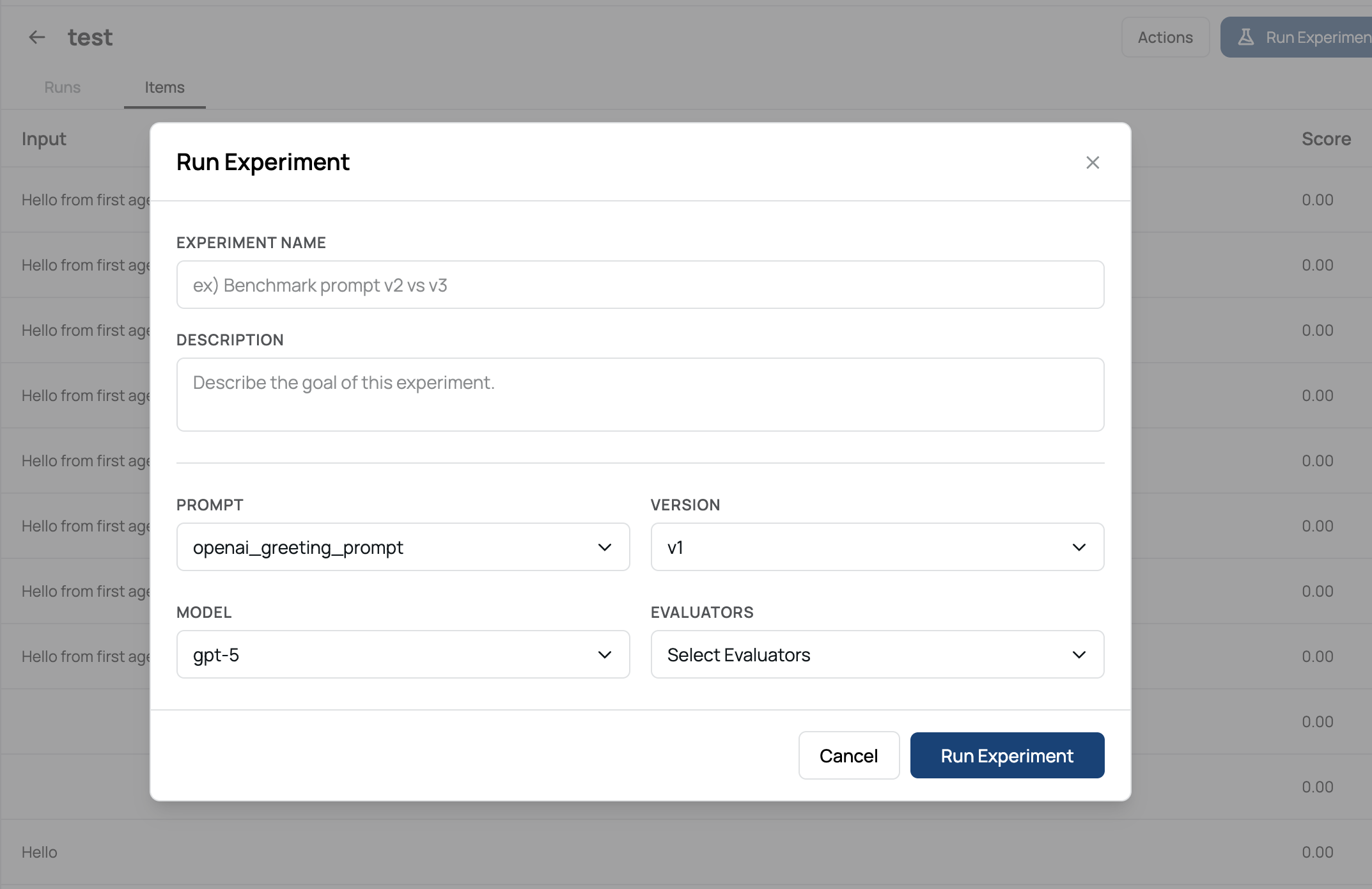
Datasets can be used to run experiments with different prompts or model configurations to evaluate performance.
Click Run Experiment to start a new experiment.
Select a prompt, model, and evaluator in the experiment settings.
View all executed experiments in the Runs tab.
Compare experiment results to analyze model performance.
The experiment feature is integrated with LLM Evaluation to perform automated evaluations.
Export
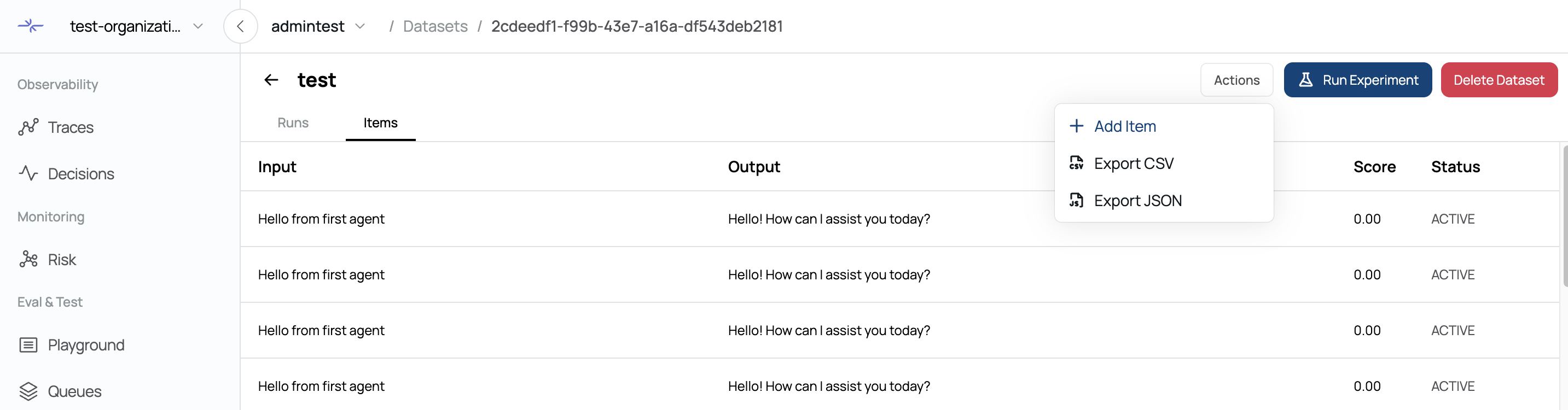
Datasets can be exported in CSV or JSON format.
From the Actions dropdown, select Export CSV or Export JSON. The exported file includes
input,output,score, andstatusfor all items. The file name automatically includes the dataset name and export date.
Was this page helpful?