

policy
Policy Management User Guide
Where to find it
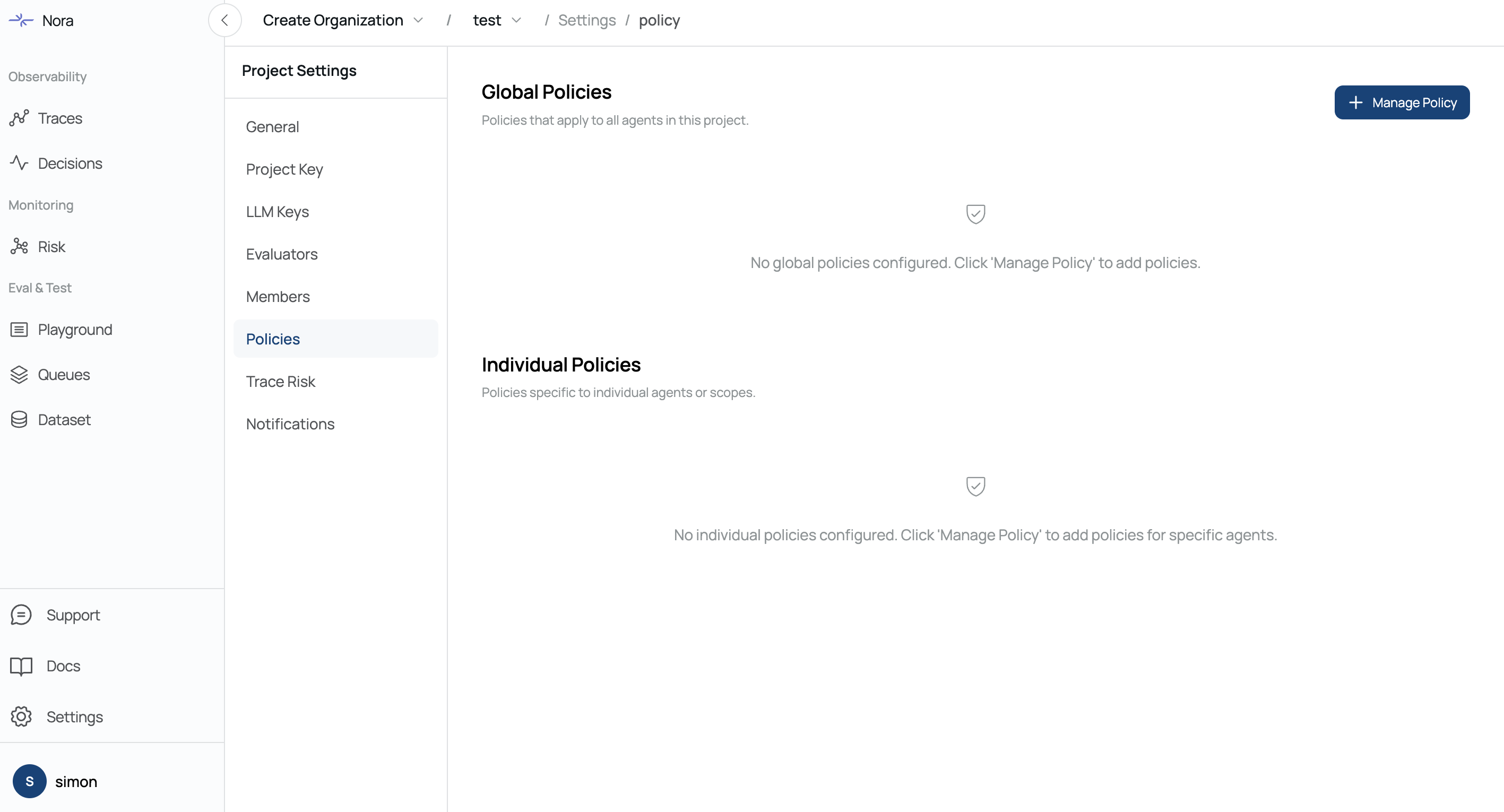
Project > Settings > Policy
Key concepts
Global Policy: Applies to all agents in the project.
Individual Policy: Applies only to a specific agent (scope).
Agent (scope): A named section within Individual Policy. The agent name defines the scope.
Importance: A per-policy priority level (High, Medium, Low).
Quick start
Open Policy Settings.
Click Manage Policy.
Upload a document to extract candidate policies.
Drag policies into the Global or Individual sections.
Adjust importance and remove any unwanted items.
Click Save Changes.
Manage Policy modal
Upload and extract policies
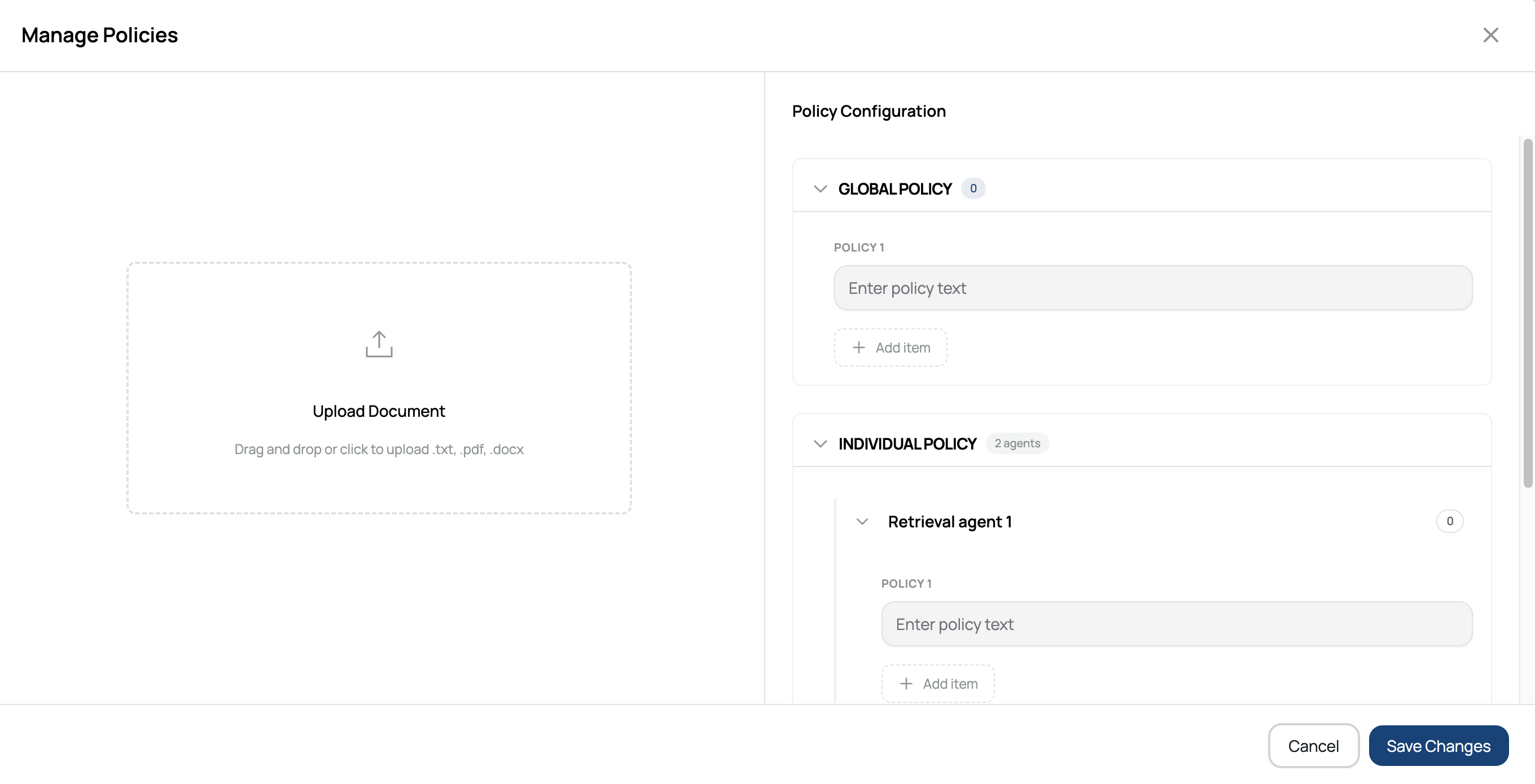
Click Upload Document (or drag and drop a file).
Supported formats:
.txt,.pdf,.docx,.docLimits:
Maximum file size: 500 KB
Maximum content length: 100,000 characters
After extraction, policies appear in the Available Policies list.
Drag and drop into sections
Drag a policy from the left panel into:
Global Policy to apply it to all agents.
An Individual Policy agent section to apply it only to that agent.
Drop targets are labeled “Drop policy here to add”.
Auto drop behavior:
Empty slots are filled first.
If no empty slots are available, a new item is created.
Manual editing
You can type directly into a policy field.
Use Add item to append a new empty policy.
Click the trash icon to remove a policy.
Select an importance level (High, Medium, Low) for each policy.
Manage agents in Individual Policy
Each agent section has a name field that can be renamed inline.
Use Add Agent Section to create a new agent group.
Use Add item within an agent section to add more policies.
Save or cancel
Save Changes: Persists all edits, additions, and deletions.
Cancel: Closes the modal without saving.
Editing existing policies on the main page
Policies are grouped into Global Policies and Individual Policies.
Expand or collapse groups using the caret icons.
Edit policy text inline and change importance via the dropdown.
Click the trash icon to delete a policy.
A Save Changes banner appears when there are unsaved edits.
Tips and limitations
Uploading very large files or excessively long content may cause extraction to fail. Split documents into smaller files if needed.
Duplicate policy text can be confusing when removing dragged items. Use unique wording whenever possible.
Agent grouping is based on the agent name. Renaming an agent changes its scope.
If you see empty lists or errors related to collection configuration, contact your administrator.
Was this page helpful?